





Ross's Personal Trading Tool Layouts
Please note the following:
- The files below require subscriptions to/accounts with companies other than Warrior Trading. This is not a recommendation to use these platforms, and is only a resource for those who decide these platforms are right for them.
- Keep in mind that Ross recommends that all traders first practice on a trading simulator before starting to trade or opening an account with live funds.
Want to learn more about how to utilize trading tools? Become a member today! Visit our Memberships page for more info.
Enjoy!
thinkorswim Layout
To utilize these layouts:
1. Copy this link: https://tos.mx/!Trte8zXK
2. Open thinkorswim
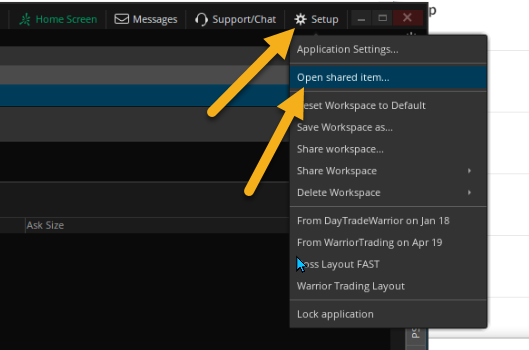
3. Go to Setup > Open Shared Item
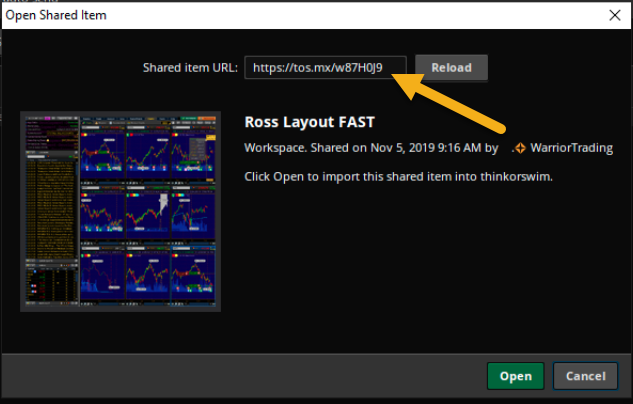
4. Paste the link
See screenshots below for guidance.
Sterling Layouts and Hotkey Files
Users of the Warrior Trading Simulator, please utilize Ross’s layout included with the WT Simulator platform — the layout here is only compatible with Sterling Technology through a broker such as CMEG or Lightspeed. See more here for how to load and save WT Simulator layouts.
Sterling platform users:
- To install the layout file, download and extract the layout file from your downloads directory, and move it somewhere safe. Then go to the Main tool bar > Actions > Load Layout, and select the new default layout.
- To make this a default layout on start up, go to the main menu bar, click View > Settings, General. On the top left select to load the desired layout.